Can I change layout after I have already exported?
Yes. Changing layout re-renders from the same recording — it never re-records. The take and the timeline are untouched by the decision, and there is no limit on how many times you switch.
Which layouts are on the free plan?
Above the Fold, Face First, Headliner, Marquee and Spotlight — 5 of the 10. Switching between them after the take is free too; the other 5 come with Pro.
Can I move things around inside a layout?
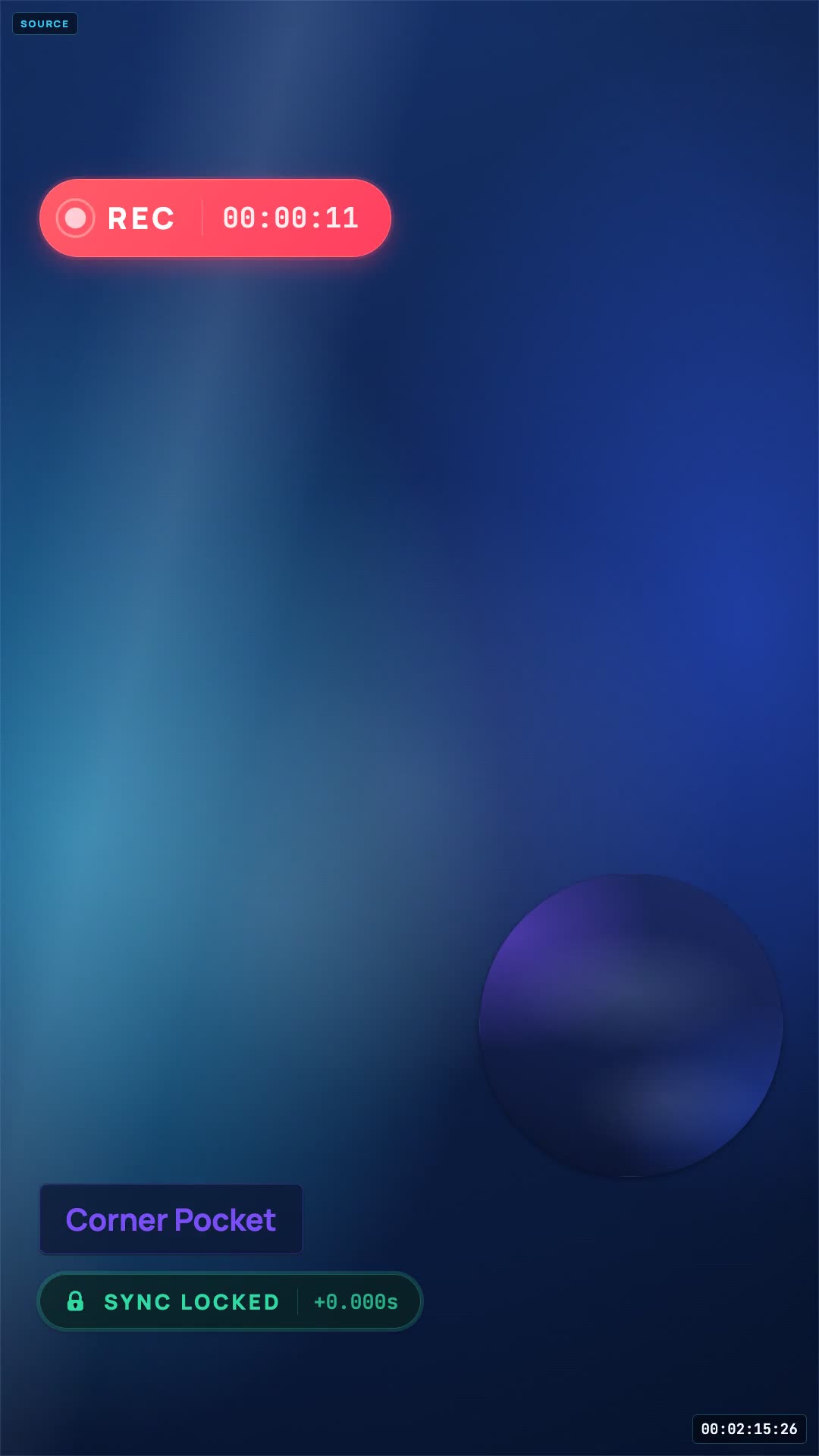
In 8 of the 10: Above the Fold, Corner Pocket, Face First, Green Room, Headliner, Marquee, Split Reaction and Spotlight. Only Full Focus and Sidecut are fixed. The position you choose is saved with the session and used by the renderer, not just the preview — so nudging Corner Pocket's circle off TikTok's action rail actually changes the exported file.
Do the layouts work in 16:9 as well as 9:16?
All 10 are authored for 9:16 and 16:9 — the two canvases the studio actually exports. The geometry re-flows per aspect rather than being cropped from the vertical version — Above the Fold, for example, becomes a source-left, camera-right arrangement on widescreen instead of a top-and-bottom stack.
What happens when a guest joins?
Above the Fold, Face First, Split Reaction and Spotlight have a two-reactor arrangement built into the manifest, so a second face splits the camera area rather than shrinking the source. Guests are a Pro feature.
Are these diagrams the real geometry?
Yes — every diagram on this page is generated from the same layout manifest files the exporter reads, so the proportions, corner radii and slot positions are the ones you will actually get.